AI-Powered Visual & UI Testing
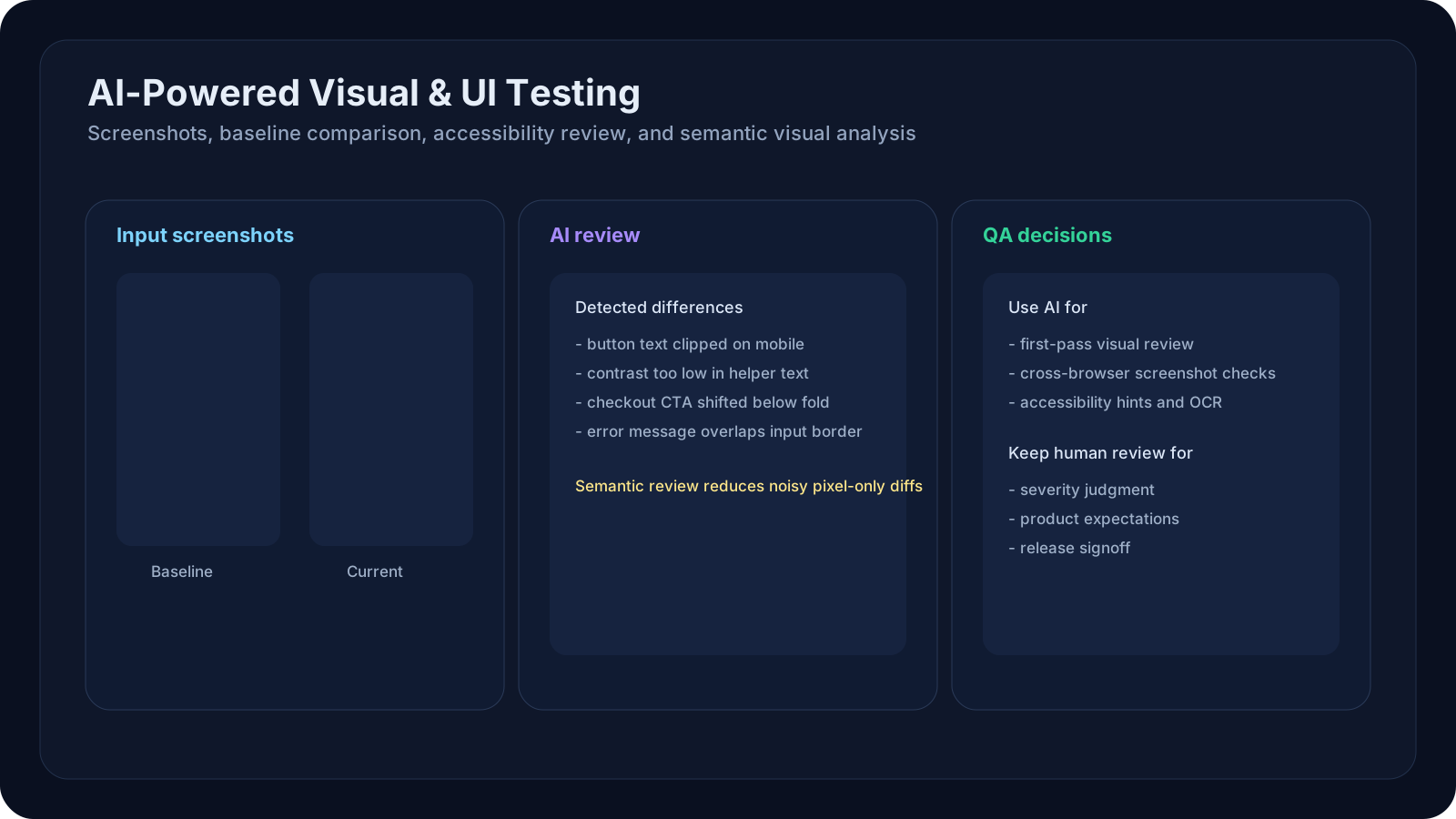
Use multimodal AI to detect UI bugs, visual regressions, and accessibility issues from screenshots.
Overview
95% of user-facing bugs manifest visually—wrong colors, misaligned buttons, broken layouts, missing text. Traditional automated testing (Selenium, Playwright) checks DOM and logic; visual testing checks what the user actually sees. With multimodal AI (Claude, GPT-5, Gemini vision), QA teams can now analyze screenshots, compare visual states, detect visual regressions, and validate accessibility—all at scale.
This lesson teaches you how to use AI vision capabilities to catch visual bugs before users do, reduce manual screenshot reviews, and automate visual regression detection.
A Practical Note for QA Learners
This lesson builds directly on the tool-selection thinking from the previous lesson. Instead of asking "Which assistant should I use?", the question now becomes:
- which tools can see screenshots well?
- which tools help reduce noisy pixel-diff workflows?
- how do I use AI vision without losing QA judgment?
Learning Goals
- Use multimodal AI to analyze screenshots and detect visual anomalies
- Compare visual states across browsers and devices to catch regressions
- Validate UI accessibility (contrast, text readability, layout) with AI
- Integrate visual testing into CI/CD pipelines with AI tools
- Build visual test baselines and drift detection workflows
Core Concepts
Why Visual Testing Matters
| Traditional Testing | Visual Testing | AI Visual Testing |
|---|---|---|
| Checks: DOM, logic, APIs | Checks: pixels, colors, layout | Checks: pixel + semantic understanding |
Example: button.isDisplayed() | Example: Is button blue? | Example: Is button blue AND accessible? |
| Finds: Logic bugs | Finds: Rendering bugs | Finds: Both + context |
| Speed: Fast | Speed: Slow (screenshot comparison) | Speed: Fast + intelligent |
| False positives: Low | False positives: High (font rendering, anti-aliasing) | False positives: Low (AI understands context) |
Multimodal AI Capabilities for Visual Testing
Modern AI models can process images and:
1✓ Describe what's in a screenshot ("There's a login form with two input fields")2✓ Detect visual anomalies ("The button text is cut off")3✓ Compare two screenshots ("In screenshot A, the button is green; in B, it's red")4✓ Validate layout ("The sidebar is misaligned on mobile")5✓ Check accessibility ("This text has poor contrast on the background")6✓ Extract text (OCR) ("The error message says 'Password required'")7✓ Validate design consistency ("This button doesn't match the design system")Visual Testing Workflows
Workflow 1: Screenshot → AI Analysis
11. Run test and capture screenshot22. Upload to Claude/GPT-5 with prompt: "Describe bugs you see"33. AI returns: List of visual issues44. QA reviews and marks as pass/failWorkflow 2: Baseline Comparison
11. Establish "golden" screenshot (correct state)22. Run test and capture current screenshot33. Ask AI: "Compare these two images. What changed?"44. AI flags visual regressionsWorkflow 3: Accessibility Validation
11. Screenshot of UI page22. Prompt AI: "Check contrast, text size, layout for accessibility"33. AI identifies: contrast failures, small text, layout issues44. Generate accessibility reportDetailed Workflows
1. Single Screenshot Analysis
Scenario: A QA engineer runs a checkout flow test. The test passes (code runs), but the UI looks wrong.
Traditional approach: Manual review of 20 screenshots
AI approach:
1import anthropic2import base6434# Load screenshot5with open("checkout_screen.png", "rb") as f:6 image_data = base64.standard_b64encode(f.read()).decode("utf-8")78client = anthropic.Anthropic()9response = client.messages.create(10 model="claude-opus-4-7",11 max_tokens=1024,12 messages=[13 {14 "role": "user",15 "content": [16 {17 "type": "image",18 "source": {19 "type": "base64",20 "media_type": "image/png",21 "data": image_data,22 },23 },24 {25 "type": "text",26 "text": """You are a QA visual testing expert. Analyze this screenshot of a checkout page.27 28Report ANY visual issues you find:29- Misaligned elements30- Broken text (cut off, overlapping)31- Color issues (unreadable text, poor contrast)32- Missing elements33- Layout problems34- Accessibility concerns3536Format as:37SEVERITY: [Critical | High | Medium | Low]38ISSUE: [description]39LOCATION: [where on screen]40"""41 }42 ],43 }44 ],45)4647print(response.content[0].text)Output:
1SEVERITY: High2ISSUE: "Complete Purchase" button text is cut off3LOCATION: Bottom right of form45SEVERITY: Medium6ISSUE: Error message text is very small (< 12px estimated)7LOCATION: Above "Email" field89SEVERITY: Low10ISSUE: Shipping address label color is slightly off-brand2. Visual Regression Detection
Scenario: Update CSS for buttons. Need to verify no visual regressions.
Approach:
1import anthropic2import base6434def compare_screenshots(baseline_path, current_path):5 """Compare two screenshots for visual regressions."""6 7 with open(baseline_path, "rb") as f:8 baseline_data = base64.standard_b64encode(f.read()).decode("utf-8")9 10 with open(current_path, "rb") as f:11 current_data = base64.standard_b64encode(f.read()).decode("utf-8")12 13 client = anthropic.Anthropic()14 response = client.messages.create(15 model="claude-opus-4-7",16 max_tokens=1024,17 messages=[18 {19 "role": "user",20 "content": [21 {22 "type": "text",23 "text": "You are a visual regression testing expert. Compare these two screenshots of the same page. Note: Some differences are expected (dates, counters), but visual layout and styling should be identical."24 },25 {26 "type": "image",27 "source": {28 "type": "base64",29 "media_type": "image/png",30 "data": baseline_data,31 },32 },33 {34 "type": "text",35 "text": "^ This is the BASELINE (expected correct state)"36 },37 {38 "type": "image",39 "source": {40 "type": "base64",41 "media_type": "image/png",42 "data": current_data,43 },44 },45 {46 "type": "text",47 "text": "^ This is the CURRENT state\n\nList all visual differences (exclude date/time changes). Format:\nREGRESSION: [yes|no]\nDIFFERENCES: [list specific changes]\nSEVERITY: [critical|high|low]"48 }49 ],50 }51 ],52 )53 54 return response.content[0].textOutput:
1REGRESSION: yes2DIFFERENCES:3- Button background color changed from blue #3b82f6 to green #10b9814- Button padding increased (appears larger)5- Hover state may have changed (can't determine from static screenshot)67SEVERITY: high8RECOMMENDATION: Review CSS changes. Button color was not intentional update.3. Accessibility Validation
Scenario: Validate a new form for WCAG compliance using AI vision.
1def check_accessibility(screenshot_path):2 """Analyze screenshot for accessibility issues."""3 4 with open(screenshot_path, "rb") as f:5 image_data = base64.standard_b64encode(f.read()).decode("utf-8")6 7 client = anthropic.Anthropic()8 response = client.messages.create(9 model="claude-opus-4-7",10 max_tokens=1024,11 messages=[12 {13 "role": "user",14 "content": [15 {16 "type": "image",17 "source": {18 "type": "base64",19 "media_type": "image/png",20 "data": image_data,21 },22 },23 {24 "type": "text",25 "text": """Analyze this screenshot for accessibility issues (WCAG 2.1 Level AA):2627CHECK:28- Text contrast (dark text on light background should have ratio >= 4.5:1)29- Font size (body text should be >= 12px; should be readable)30- Layout (elements should not overlap; spacing should be clear)31- Color alone (important info not conveyed by color only)32- Focus indicators (buttons/fields should have visible focus states)33- Labels (form fields should have labels)3435Report issues:36ISSUE: [description]37SEVERITY: [fail|warning|pass]38WCAG CRITERION: [e.g., 1.4.3 Contrast]39RECOMMENDATION: [how to fix]40"""41 }42 ],43 }44 ],45 )46 47 return response.content[0].textOutput:
1ISSUE: Error message text is red on light pink background2SEVERITY: fail3WCAG CRITERION: 1.4.3 Contrast (Minimum)4RECOMMENDATION: Use darker red (#c91c0c) or white text on red background (ratio ~7:1)56ISSUE: "Password must be 8+ characters" hint text is very small (~10px)7SEVERITY: warning8WCAG CRITERION: 1.4.4 Resize Text9RECOMMENDATION: Increase to 12px or allow browser zoom without loss of function1011ISSUE: Form labels are clear and associated with inputs12SEVERITY: pass1314ISSUE: Buttons have visible focus state (blue outline on tab)15SEVERITY: passQA/SDET Relevance
Manual QA Perspective
Before: Manually review 50 screenshots per release → 2 hours After: AI analyzes all 50 in 5 minutes, flags 3 visual issues → 15 min review
Real-world: Screenshot-heavy workflows (mobile, responsive design, UI-intensive apps) save hours per sprint.
Automation Engineer Perspective
Before: Selenium locators check elements exist; can't verify appearance After: Take screenshot at key point, ask AI "Does this look right?"
Real-world: Combine Playwright click actions with screenshot verification:
1# Fill form2await page.fill("input[name=email]", "test@example.com")3await page.fill("input[name=password]", "password123")4screenshot = await page.screenshot()56# AI validates form looks correct before submit7validation = await check_screenshot_accessibility(screenshot)8if validation.has_issues:9 print(f"Form has accessibility issues: {validation.issues}")10 fail_test()11else:12 await page.click("button[type=submit]")SDET Perspective
Build reusable visual testing framework:
1class VisualTestSuite:2 def __init__(self):3 self.baseline_dir = "tests/visual_baselines"4 self.ai_client = anthropic.Anthropic()5 6 def assert_visual_unchanged(self, page, component_name):7 """Assert UI component matches baseline."""8 current_screenshot = page.screenshot()9 baseline_screenshot = self.load_baseline(component_name)10 11 diff_report = self.compare_with_ai(baseline_screenshot, current_screenshot)12 assert diff_report.regression == False, f"Visual regression detected: {diff_report.differences}"13 14 def assert_accessible(self, page):15 """Assert page meets accessibility standards."""16 screenshot = page.screenshot()17 a11y_report = self.check_accessibility(screenshot)18 assert a11y_report.severity != "fail", f"Accessibility failures: {a11y_report.issues}"Examples and Use Cases
Example 1: E-Commerce Checkout Regression
Test scenario: Update button styling from flat to rounded corners
Before (Manual):
- Tester screenshots checkout on Chrome, Firefox, Safari, iOS, Android
- Manually compares each screenshot (20 minutes)
- Risk of missing subtle bugs
After (AI):
1for browser in ["Chrome", "Firefox", "Safari"]:2 screenshot = take_screenshot(browser)3 report = compare_with_baseline(screenshot, baseline_dir/browser)4 assert report.regression == False- Automated, consistent, 2 minutes
- Catches color, alignment, text wrapping issues
Example 2: Accessibility Audit Sprint
Manual approach: Hire accessibility consultant ($5K), takes 2 weeks
AI approach:
1# Screenshots of 100 pages in production2screenshots = collect_all_page_screenshots()34for page_name, screenshot in screenshots.items():5 a11y_report = check_accessibility(screenshot)6 if a11y_report.severity == "fail":7 log_issue(page_name, a11y_report)- Cost: $10–20 (AI API calls)
- Time: 30 minutes
- Result: List of 200 issues to prioritize and fix
Example 3: Mobile Responsive Testing
Scenario: Verify login page on 10 device sizes
Before: Manual screenshots on each device (4 hours)
After: Playwright browser context sizes + AI analysis
1devices = ["iPhone 12", "iPad Pro", "Galaxy S21", ...]2for device in devices:3 context = browser.new_context(device_scale_factor=1)4 page = context.new_page()5 await page.goto(login_url)6 screenshot = await page.screenshot()7 8 # Automated check9 if not is_layout_responsive(screenshot):10 log_regression(device, screenshot)Hands-On Exercise
Exercise 1
Analyze a Screenshot
Your task: Use Claude or GPT-5 vision to analyze a real UI screenshot.
Steps:
- Take a screenshot of any website or app (your bank, email, shopping site)
- Go to Claude.ai or ChatGPT and upload the image
- Paste this prompt:
1 You are a QA visual testing expert. Analyze this screenshot for:2 - Misaligned or overlapping elements3 - Text that is cut off or hard to read4 - Poor color contrast (light text on light background, etc.)5 - Missing elements6 - Accessibility issues (text too small, buttons too small)7 8 List issues found with severity (Critical/High/Medium/Low).- Document findings:
- How many issues did AI find?
- Are they real issues or false positives?
- Would these be easy to miss in manual testing?
Exercise 2
Visual Regression Detection
Your task: Compare two versions of a page.
Steps:
- Take a screenshot of a website
- Make a small intentional change (open browser dev tools, hide an element or change a color)
- Take a second screenshot
- Go to Claude/GPT-5, upload both images
- Use this prompt:
1 Compare these two screenshots. List every visual difference you see.2 3 [Image 1 - original]4 [Image 2 - modified]5 6 Format:7 CHANGE: [description]8 SEVERITY: [critical|high|medium|low]9 IMPACT: [what the user would notice]- Verify: Did AI catch all changes you made?
Exercise 3
Accessibility Quick Check
Your task: AI-powered a11y audit of a real page.
Steps:
- Go to any form-heavy page (sign-up, checkout, settings)
- Take screenshot
- Upload to Claude with:
1 Check this page for accessibility issues (WCAG 2.1 AA):2 - Text contrast (ratio should be 4.5:1 for body text)3 - Font sizes (body text >= 12px)4 - Form labels (fields should have labels)5 - Keyboard navigation (buttons should be reachable by tab)6 7 Rate overall accessibility: Pass / Warning / Fail- Compare AI findings with:
- Manual inspection (your eye test)
- Browser accessibility extension (WAVE, Axe DevTools)
Key Takeaways
- AI vision dramatically reduces manual screenshot review time while catching visual bugs humans might miss
- Multimodal AI can validate accessibility (contrast, text size, layout), not just automate clicks
- Visual regression detection works best with 2–3 model comparison (Claude + GPT-5) for confidence
- Combine visual testing with functional testing: functional tests check logic; visual tests check perception
- Screenshot-based testing scales to hundreds of pages when automated with AI, not feasible manually
- Context matters: AI understands "This button should be clickable" vs. pixel-perfect comparison tools
Next Steps
- Try visual testing on your QA team's app. Screenshot a critical flow (checkout, login, form), run AI analysis, measure time savings vs. manual review
- Set up baseline comparisons for your key pages to catch visual regressions before release
- In Level 7, we apply visual testing to AI-powered QA workflows: integrating visual checks into automated test suites at scale